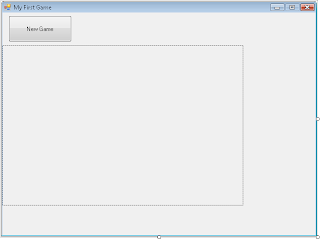
Right, before we add all that fancy graphics, we have to prepare our form first. We'll add some additional picture boxes to hold our images. Like the one to hold the firefighter dalmatian doggy, etc… So, add the controls, and modify their properties as shown in the following tables.
PictureBox
- (name):picDoggy
- BackColor: Web > Transparent
- Image: [Load firefighter doggy image]
- Location: 477; 186
- Size: 131; 201
PictureBox
- (name):picSplash
- Anchor:Right
- BackColor: Web > Transparent
- Image: [Load water splash image]
- Location: 45; 81
- Size: 407; 50
- SizeMode: StretchImage
- Visible: False
And now, adjust your form's properties so it'll show the background image:
Form - frmMain
- BackgroundImage: [Load background image]
If you did everything correctly, you should get your game looking quite similar to the one I've made. But we still have to replace our regular buttons with some fancy ones. If you're really going for the 'wow' effect, you can use pictureboxes combined with labels to replace the buttons. So, remove your buttons (select them and click 'Delete') add some more controls to your form:
Note: Our new picture boxes that'll replace the buttons will be called same as the buttons we're replacing. That way, we won't have to change our old code.
PictureBox
- (name):butGame
- BackColor: Web > Transparent
- Image: [Load cloud image]
- Location: 12; 6
- Size: 126; 53
- SizeMode: StretchImage
PictureBox
- (name):butHighScores
- BackColor: Web > Transparent
- Image: [Load cloud image]
- Location: 144; 6
- Size: 126; 53
- SizeMode: StretchImage
PictureBox
- (name):butNG
- BackColor: Web > Transparent
- Image: [Load cloud image]
- Location: 276; 6
- Size: 126; 53
- SizeMode: StretchImage
Now, we'll add some labels to our clouds:
Label
- (name): lblGameCloud
- BackColor: Web >White
- Location: 23; 26
- Size: 107; 20
- Text: New Game
- TextAlign: MiddleCenter
Label
- (name): lblHighScore
- BackColor: Web >White
- Location: 155; 26
- Size: 107; 20
- Text: High Scores
- TextAlign: MiddleCenter
Label
- (name): lblNG
- BackColor: Web >White
- Location: 286; 26
- Size: 107; 20
- Text: New Game
- TextAlign: MiddleCenter
It would be cool if the label inside the picture box would pop-up when the player moves the mouse over the picture box… Here's the code for all three buttons:
private void butGame_MouseEnter
(object sender, EventArgs e)
{
// Set label font to bold:
lblGameCloud.Font = new Font
(lblGameCloud.Font, FontStyle.Bold);
}
private void butGame_MouseLeave
(object sender, EventArgs e)
{
// Set label font to normal:
lblGameCloud.Font = new Font
(lblGameCloud.Font, FontStyle.Regular);
}
private void butHighScores_MouseEnter
(object sender, EventArgs e)
{
// Set label font to bold:
lblHighScore.Font = new Font
(lblHighScore.Font, FontStyle.Bold);
}
private void butHighScores_MouseLeave
(object sender, EventArgs e)
{
// Set label font to normal:
lblHighScore.Font = new Font
(lblHighScore.Font, FontStyle.Regular);
}
private void butNG_MouseEnter
(object sender, EventArgs e)
{
// Set label font to bold:
lblNG.Font = new Font
(lblNG.Font, FontStyle.Bold);
}
private void butNG_MouseLeave(
object sender, EventArgs e)
{
// Set label font to normal:
lblNG.Font = new Font
(lblNG.Font, FontStyle.Regular);
}
To make this code work, go to your form designer window, then go to your properties window, and click on the 'Events' icon (lightning) on the top of the box. Select your new controls, one by one and find events called MouseEnter and MouseLeave. Click on the little dropdown arrow and you'll see our new code method names in the list. I hope you can find and match the right ones… If not, here's a list that shows you how to match the righ stuff.
- Control - Event - EventName
- butGame - Click - butGame_Click
- butGame - MouseEnter - butGame_MouseEnter
- butGame - MouseLeave- butGame_MouseLeave
- butHighScores - Click - butHighScores_Click
- butHighScores - MouseEnter - butHighScores_MouseEnter
- butHighScores - MouseLeave- butHighScores_MouseLeave
- butNG - Click - butNG_Click
- butNG - MouseEnter - butNG_MouseEnter
- butNG- MouseLeave- butNG_MouseLeave
- lblGameCloud - Click - butGame_Click
- lblGameCloud- MouseEnter - butGame_MouseEnter
- lblGameCloud- MouseLeave- butGame_MouseLeave
- lblHighScore - Click - butHighScores_Click
- lblHighScore - MouseEnter - butHighScores_MouseEnter
- lblHighScore - MouseLeave- butHighScores_MouseLeave
- lblNG - Click - butNG_Click
- lblNG - MouseEnter - butNG_MouseEnter
- lblNG- MouseLeave- butNG_MouseLeave
You probably noticed in the table that we added the 'Click' event to our old button code… That's a nice touch in VS.net, that spares us from retyping the code… (or c/p-ing ;) Nice… Hope you did everything right… And one other cool thing is, that we added the same code to our labels and pictureboxes... Before you try the stuff, let's finally add some graphics.